
.png)
Equipment Management program

Can be used with MENZL equipment testers or as a standalone equipment-management application
reliable – user-friendly – suitable for networks
Introduction
Developed in-house, the feature-packed yet user-friendly Equipment Management program (version 5) is the go-to application for hundreds of respiratory protective equipment officers when it comes to managing and testing a wide variety of respiratory protective equipment.
Program features
With our program, you can, inter alia, do the following:
- manage program users and user privileges
- manage equipment owners
- manage individuals associated with equipment owners
- manage type-specific test preferences
- manage test procedures
- manage equipment types (incl. test intervals)
- manage equipment data (incl. dates when tests are due)
- manage equipment with a limited service life
- perform equipment tests and save the recorded data
- manage stored data on equipment tests
- print test reports
- manage callouts and training sessions
- search for equipment that is due for testing
- use comprehensive reporting and statistics features
- make and manage lists of equipment to be tested option *
- perform cylinder fillings and cylinder pressure tests option *
- manage any kind of equipment option *
- create tests that can be activated if needed
- use barcodes to tag and identify pieces of equipment
- create user reports
- export reports in a variety of formats
- export and import data (standardized CSV format)
- back up data to USB drives
- download program updates via an FTP connection
- capture electronic signatures using a signature pad
- perform and manage remote cylinder fillings
- perform and manage remote equipment tests
- hire out equipment option *
- make and manage lists of equipment given out option *
- set up and manage central testing stations option *
- collate data requires a central testing station
- manage stock and do invoicing option *
* Program options are sold separately.
User permissions
User permissions allow you to make program features calling for particular caution (e.g. changing program preferences, deleting data, modifying test preferences) available only to users who are known to use them prudently.

Equipment due for testing
This program feature lets you search for equipment due for testing. Specifying the kind of equipment and the kind of test, you can search for equipment that is due for testing either by a given date or within a given period of time. The latter is particularly helpful in making provisions regarding replacement parts and/or the time needed to carry out the tests.
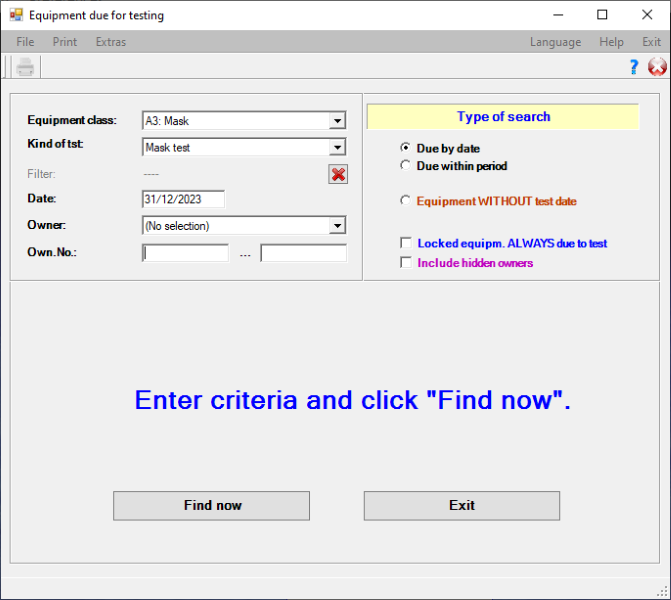

Equipment data
Equipment owners, equipment kinds and equipment types are the basis for managing equipment data. Every piece of equipment is given a file number that is unique for the equipment kind in question. For every piece of equipment, the Equipment Management program allows you to store not only the master data, which you can configure to some extent, but also a record of test-related data and, optionally, callouts and training sessions involving the piece of equipment in question. In addition, you can tag every piece of equipment with a barcode for quick and easy retrieval of its data from the database.

Equipment tests and test preferences
Test procedures can be freely defined, allowing you to create sequences of tests for equipment testing. Test procedures are assigned to equipment types and carried out against type-specific test preferences. While performing an equipment test, you can immediately see whether the recorded values meet the required thresholds. Values are recorded either manually by entering them into the Equipment Management program or fully automatically in conjunction with a computer-assisted MENZL equipment tester.
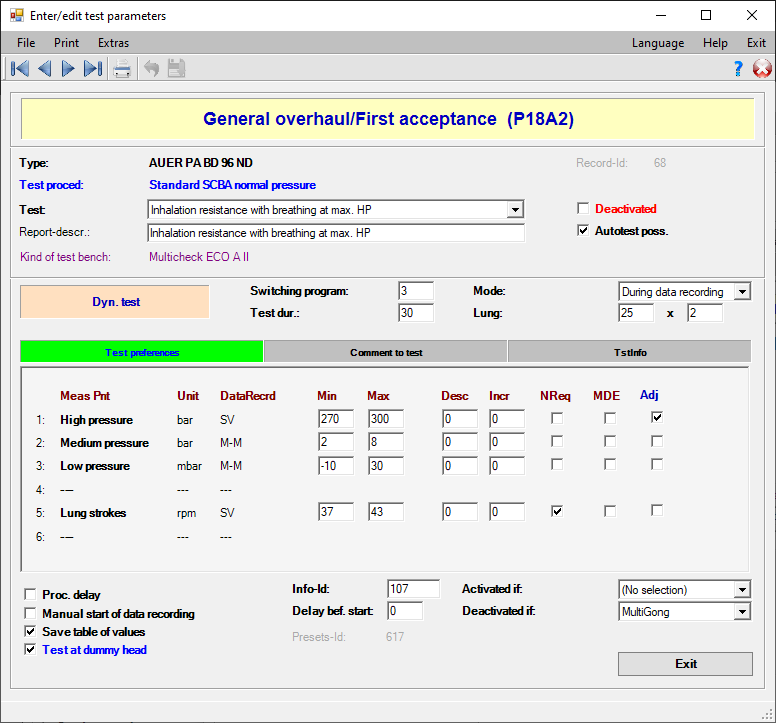
Equipment tests with automated data recording
If you use the Equipment Management program in conjunction with a computer-assisted MENZL equipment tester, the actual values recorded will be displayed as bar graphs while a test is being carried out. Completed tests are colour-coded, allowing you to distinguish passed ones from failed ones at a glance. In combination with an automated MENZL equipment tester, the adjustment of settings and the execution of tests are, as far as possible, controlled automatically by the program.

Equipment tests with manual data entry
If you do not have a computer-assisted tester or if computer-assisted testing is not possible for the kind of equipment to be tested, you can use the manual-data-entry equipment testing window and record all of the required values manually by entering them into the respective data fields. Values entered manually are evaluated in the same manner as data recorded automatically.

Reporting and statistics features
The Equipment Management program comes with a comprehensive set of reporting and statistics features for breaking down stored data based on a wide variety of criteria. The included printing system, List & Label, lets you not only print but also export individual reports in many different formats. To cater for individual needs and requirements, it is also possible to modify existing reports or create new ones and subsequently make them available in various input windows.


Quick-reference program guides
Quick-reference guides with step-by-step instructions are available for many features of the Equipment Management program. They are PDF files located in a subfolder of the program’s installation folder and can be accessed from within the application. If you add your own PDF files to this subfolder, you will be able to access them along with the quick-reference guides included with the program.


Callouts and training sessions
This program feature makes it easy to keep a record of callouts and training sessions. It allows you both to store the master data for every callout and training session and to link equipment and/or individuals to the event.


Equipment given out
With this program option, you can easily make and manage lists to keep a record of equipment that you give out or get back. Comprehensive reporting features let you compile reports on loan periods and loan costs.

Remote testing stations
This program feature allows you to carry out remote equipment tests (for instance by means of a portable equipment tester or a vehicle equipped for equipment testing) and subsequently transfer the recorded data into the main database. The computer used at the remote testing station requires a separate workstation licence. For transferring the data, it needs to be linked to the main computer via a network connection.
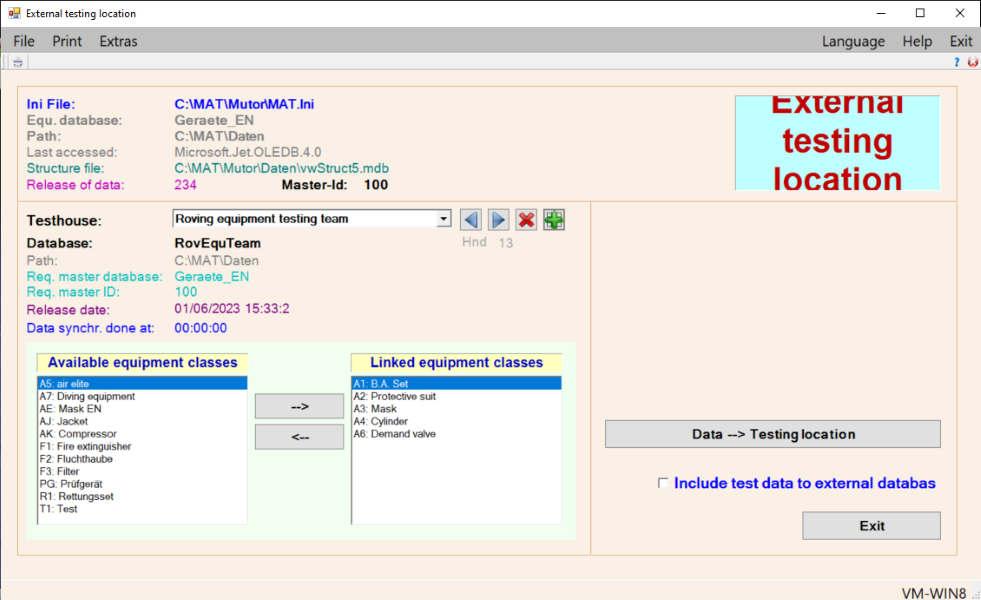
testing stations

equipment data
Remote filling stations
This program feature allows you to carry out remote cylinder fillings (for instance at a mobile cylinder filling station during a callout or training session) and subsequently transfer the recorded data into the main database. The computer used at the remote filling station requires a separate workstation licence. For transferring the data, it needs to be linked to the main computer via a network connection.

filling stations

cylinder fillings
Limitations compared to version 3
Cylinder fillings
Cylinder Fillings option required.
When you fill a compressed-air cylinder, you have to keep a record of the filling. In conjunction with cylinder tagging by means of barcode labels, the Cylinder Fillings program option takes the hassle out of fulfilling this requirement. It provides a user-friendly module and lets you record a compressed-air cylinder as having been filled by simply scanning its barcode. In essence, the program option offers the same features as the Cylinder Management program. Learn more.

Barcodes
The Equipment Management program allows you to tag and identify pieces of equipment by means of barcodes. We recommend using it with barcode scanners capable of operating via a virtual serial (USB COM) port as this type of scanner is particularly user-friendly. If you do not want a wired scanner, you can opt for a wireless one instead. Barcode labels are available with either an adhesive back (for installation on the outside of equipment) or an adhesive front (for installation on the inside of a mask lens). Learn more.

Signature pad
When used in combination with a Wacom STU signature pad, the Equipment Management program lets you capture electronic signatures for equipment tests, combined test reports, lists of equipment given out, cylinder pressure tests and delivery notes. If you have a multi-workstation computer network, you can configure the workstations at which a signature pad is available via the preferences of the Equipment Management program. Learn more.

Accessory: printer for printing ID stickers for equipment sealed after testing
This printer allows you to print ID stickers for pieces of equipment sealed after testing. The stickers can be made quickly and easily via the Equipment Management program.

.png)


sealed mask
Data collation
Requires an FTP connection and data provided by a central testing station.
The data collation feature allows central testing stations to collate their equipment data with subordinate testing stations. For this purpose, groups of equipment owners need to be created based on the serial numbers of the copies of the Equipment Management program used at the subordinate testing stations. The equipment file numbers serve as the basis for data collation. The central testing station is responsible for data management. When it adds or deletes pieces of equipment, they are automatically added or deleted at the subordinate testing stations as well. A data collation table created by the central testing station is used for sending data to the subordinate testing stations. Modifications of the data made by a subordinate testing station are transferred to the central testing station by means of CSV files.
Data export and data import
This feature allows data to be exchanged between different points of testing by means of a CSV text file. The equipment master data and the dates of tests can be exported. The data recorded during testing and test preferences are not exportable, though. The CSV export file can be transferred by e-mail or via an FTP server. Upon importing the data, the Equipment Management program attempts to match records automatically based on the respective equipment numbers. Records that cannot be matched automatically need to be processed manually. CSV export files can also be used to transfer data to remote databases.
Database format
By default, the Equipment Management program uses the Microsoft Access database format, which is subject to a size limit of 2 GB. A runtime module for accessing Microsoft Access databases is included in our program's scope of delivery. For networked systems, Microsoft SQL Server can be used instead of Microsoft Access. In this context, it is important to keep in mind that the Equipment Management program must be allowed to create tables and change table structures.
PLEASE NOTE: We do NOT supply Microsoft SQL server. You will be responsible for taking care of its installation and provision.
Available program options
Please note: The following list is non-exhaustive.
- managing any kind of equipment
- carrying out/manging cylinder fillings
- hiring out equipment
- making/manging lists of equipment given out
- making/managing lists of equipment to be tested
- setting up and managing central testing stations
- managing stock and doing invoicing
Program options are sold separately!
Available UI languages
- English
- German
- Spanish
- Czech
Recommended PC configuration
Any reasonably modern standard PC can run the Equipment Management program. We recommend at least the following configuration:
- processor: 2.8 GHz
- RAM: 8 GB
- hard disk: 500 GB
- USB ports: 2 free USB ports
- operating system: Windows 11 Pro (Windows 10 Pro is possible.)
Note on using the program in conjunction with an equipment tester (A/D converter)
The onboard USB ports of some desktop computers are not powerful enough for operating a USB A/D converter. Therefore, we recommend equipping desktop computers with a USB expansion card for connecting the A/D converter.
Article numbers
| Equipment Management program (v. 5, excl. cylinder-filling functionality) | 330-453 |
| Software maintenance contract for 12 months | 330-613 |
| Program option for managing any kind of equipment | 330-448 |
| Program option for carrying out and managing cylinder fillings | 330-341 |
| Program optopn for hiring out equipment | 330-144 |
| Program option for making and managing lists of equipment given out | 330-155 |
| Program option for making and managing lists of equipment to be tested | 330-223 |
| Program option for managing stock and doing invoicing | 330-628 |
Downloads
Program installation and quick-start guide
USB/CDC driver for „Datalogic“ barcode scanners (32-bit version / 64-bit version)
USB/CDC driver for „Motorola/Zebra“ barcode scanners (32-bit version / 64-bit version)