
.png)
Barcodes and scanners

Hassle-free tagging of equipment
Back-adhesive labels and front-adhesive labels (for masks) available
Choose a wireless or a wired scanner
Why tag pieces of equipment with a barcode?
The Equipment Management program supports the tagging of equipment by means of barcodes, allowing you to identify pieces of equipment in a hassle-free, quick and fail-safe manner. With a click of the scanner button, you can select a piece of equipment for testing or retrieve its data from the database for editing. Moreover, it is impossible to mix up database records as long as the right barcode has been added to the right piece of equipment.
Barcode labels
We sell back-adhesive barcode labels (for installation on the outside of equipment) as well as front-adhesive barcode labels (for installation on the inside of a mask lens).
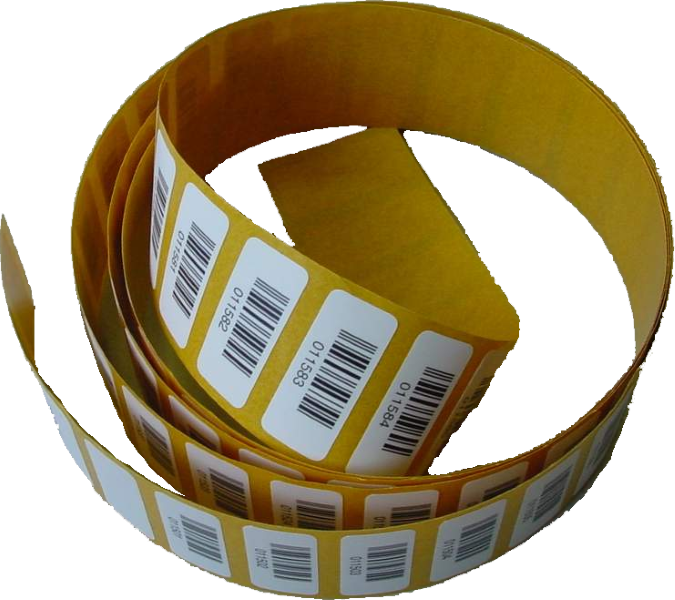
barcode labels
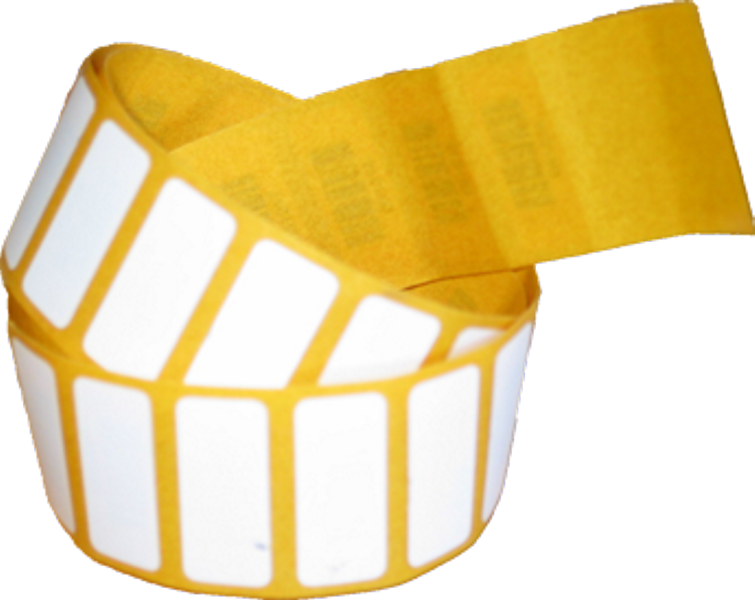
barcode labels
Every label has a 6-digit interleaved 2/5 code printed on it not only as a barcode but also in a human-readable format. The labels are made of high-quality POLYTRANS IB. They have excellent adhesive qualities, are wipe-resistant and withstand cleaning processes without any problems.

How to install the barcode labels
You should install the barcode labels in a place that makes them easy to scan while providing maximum protection from damage. It is also a good idea to always choose roughly the same place for the same kind of equipment as this will allow you to locate the labels more quickly.
For optimal adhesion, clean the installation site with a dry cloth before peeling the barcode label from its backing and sticking it onto the piece of equipment. Once you have tagged the piece of equipment, you need to add the barcode to its database record.
Examples
A tagged SCBA. The barcode label is located on the carrier plate of the device.
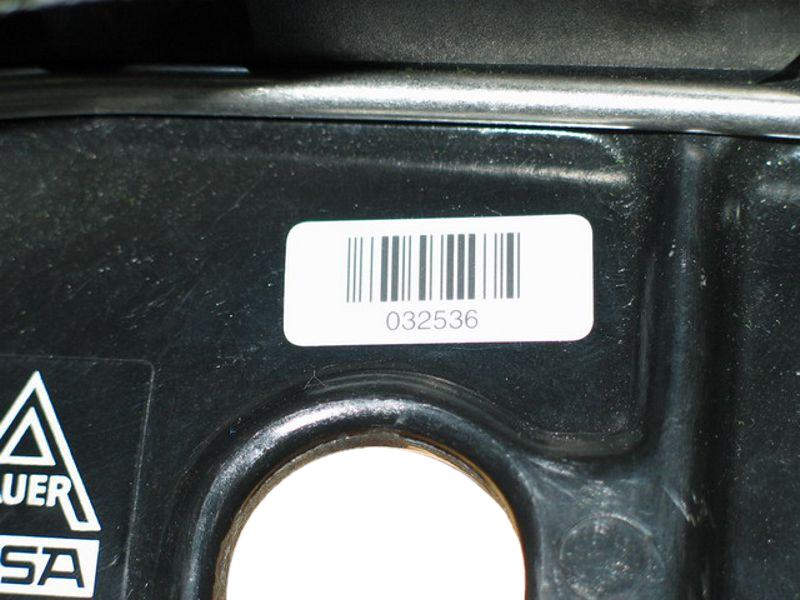
A tagged mask. The front-adhesive barcode label is located on the inside of the mask lens. When installing the barcode label in this place, you need to make sure that the code's scannability is not impeded by anything that may be printed on the lens.

A tagged compressed-air cylinder. Ideally, place the label on the cylinder shoulder near the neck so as to guarantee perfect scannability.

Barcode scanners
There are different types of barcode scanners you can choose from, including wired USB scanners as well as wireless scanners. Irrespective of its type, the chosen scanner must be able to communicate with the computer via a serial (COM) or a virtual serial (USB COM) port for efficient use with pieces of software developed by Atemschutztechnik MENZL.
Wired barcode scanners
Very sturdy scanners for connection to a computer via a USB port. They provide excellent code-reading performance and project a green dot onto barcode labels after successful scanning.
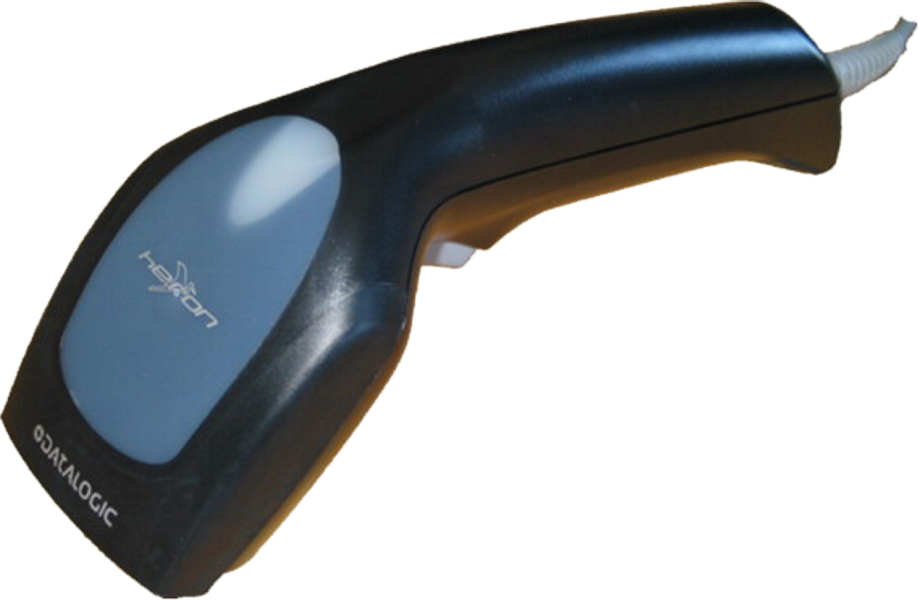
Wireless barcode scanners
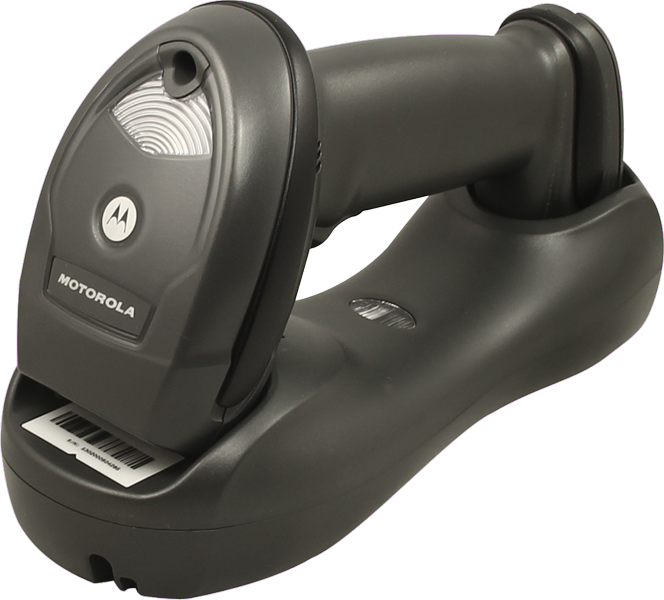
Professional wireless handheld scanners. Scanned barcodes are wirelessly transmitted to the cradle which, in turn, sends them to the computer via a USB connection. The scanners offer excellent handling and very good reading performance with a code transmission distance of up to 15 metres.
Article numbers
Downloads
USB/CDC driver for „Datalogic“ barcode scanners (32-bit version / 64-bit version)
USB/CDC driver for „Motorola/Zebra“ barcode scanners (32-bit version / 64-bit version)